Changing the View Mode for the PowerPivot Gallery
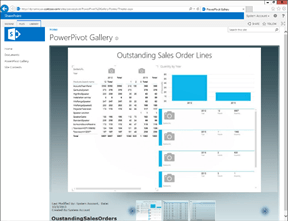 If you want to show off, you can also change the style of the PowerView Gallery to Carrousel, Theatre, or List mode depending on where you are embedding the view.
NOTE: This is part of the Using PowerPivot to Analyze Your Dynamics AX Data blog series where we show how PowerPivot can assist you with advanced data analysis and reporting, making those extracts from Dynamics AX to Excel even more valuable. If you want to see all of the other posts in this series, click here.
HOW TO DO IT
To change the view style of the PowerPivot Gallery, follow these steps:
- From within the PowerPivot Gallery, expand the Library ribbon bar, and within the Manage Views group, select the drop down for the Current View. This will allow you to change the view.

HOW IT WORKS
The Carousel view will allow you to browse through the different workbooks like a juke box.

The Theatre view will flatten the views out showing thumbnails in the footer and then larger views in the header.

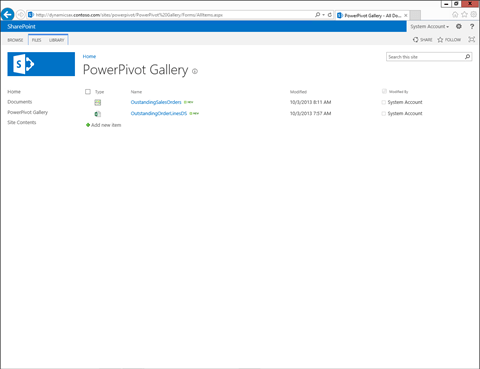
The All Documents view will look more like a traditional windows file explorer view.
 Extending Dynamics AX